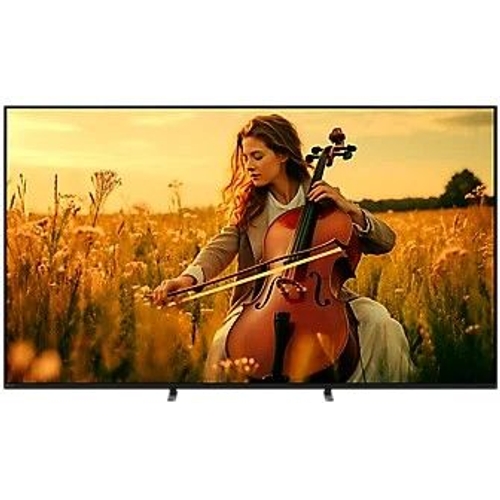
Experience cinematic excellence with the Sony BRAVIA 5 K85XR55BP, featuring a massive 85-inch 4K U...Experience cinematic excellence with the Sony BRAVIA 5 K85XR55BP, featuring a massive 85-inch 4K Ultra HD QD-Mini LED display. This smart TV runs on Android TV and offers advanced picture technology, including Mini LED and XR Backlight Master Drive, for incredible contrast and brightness. Enjoy studio-quality visuals with stunning detail, vibrant colours thanks to XR Triluminos Pro, and super-smooth motion for action-packed scenes. The Acoustic Multi-Audio system ensures immersive sound that syncs perfectly with the visuals, complemented by frame speakers. With IMAX Enhanced and Dolby Vision compatibility, and Calman Ready support for professional calibration, this TV delivers an exceptional viewing experience, bringing the cinema straight to your living room. Its XR Processor enhances every frame with precision, making both bright and dark scenes come alive with clarity and detail. Whether you're watching movies, gaming, or streaming, the BRAVIA 5 provides true-to-life colours and flawless motion, ensuring you won't miss a single detail.
The Sony BRAVIA 5, an 85-inch 4K Ultra HD Smart TV, is designed for home entertainment enthusiasts seeking a cinematic experience. It delivers stunning picture quality with its QD-Mini LED display and XR Backlight Master Drive, providing incredible contrast and brightness. While offering advanced features like Dolby Vision and IMAX Enhanced, users should note the premium price point reflects its high-end performance. With Google TV and Acoustic Multi-Audio, this TV promises an immersive viewing experience for movies, gaming, and streaming.
All features
Colour
Black
Energy Efficiency
C
Screen Size
85
Display Type
4K Ultra HD
Series
BRAVIA 5
Model Part Number
K85XR55BP.UKA
Brand
Sony
Extended Product Information
FAQs
How do I update the TV's software?
Go to Settings > System > About > System Software Update and follow the on-screen instructions.
How do I connect to Wi-Fi?
Go to Settings > Network & Internet > Wi-Fi and select your network.
Does the TV support Bluetooth?
Yes, it supports Bluetooth for connecting headphones and other devices.
How do I adjust the picture settings?
Press the Settings button on the remote, then go to Picture settings to adjust brightness, contrast, and other settings.
What is the warranty period?
The warranty period is typically one year, but check the documentation provided with the TV for specific details.
How do I perform a factory reset?
Go to Settings > System > About > Reset and follow the on-screen instructions. Note that this will erase all your settings.
Can I connect a soundbar?
Yes, you can connect a soundbar via HDMI (ARC/eARC) or optical audio.
Does the TV support voice control?
Yes, it supports voice control through the Google Assistant.
Troubleshooting
No picture or sound.
Check the power connection, ensure the TV is turned on, and verify the input source.
Poor picture quality.
Adjust the picture settings in the menu, ensure the source content is high-resolution, and check the cables.
No sound from some apps.
Check the audio settings in the app and on the TV, and ensure the volume is turned up.
Network connection problems.
Check your Wi-Fi or Ethernet connection, restart your router and TV, and ensure the network settings are correct.
Remote control not working.
Replace the batteries in the remote control, and ensure there are no obstructions between the remote and the TV.
Pros and Cons
Pros
Exceptional picture quality with QD-Mini LED and XR Backlight Master Drive.
Immersive audio experience with Acoustic Multi-Audio.
Wide range of smart features with Google TV.
Supports Dolby Vision and IMAX Enhanced for a premium viewing experience.
Excellent for gaming with HDMI 2.1 features.
Cons
Premium price point.
May require professional calibration for optimal settings.
Large size may not be suitable for all living spaces.
Requires a separate sound system for the best audio performance, despite the Acoustic Multi-Audio system
Setup, Compatibility & Care
Initial Setup: Connect the TV to a power source and follow the on-screen instructions to set up the network connection, sign in to your Google account, and customize the settings.
Connections: Connect external devices such as gaming consoles, Blu-ray players, and soundbars via the HDMI ports. Use the USB ports for external storage devices.
Compatibility: The TV is compatible with various devices and formats, including 4K HDR content, Dolby Vision, and various audio formats. Ensure your external devices support these formats for the best experience.
Care:
Clean the screen with a soft, dry cloth. Avoid using liquid cleaners.
Regularly dust the TV and the surrounding area to prevent dust buildup.
Ensure proper ventilation to prevent overheating.
Update the TV's software regularly for optimal performance and security.



 AO.com£2,199.00Visit shop
  Hughes£2,199.00Visit shop


