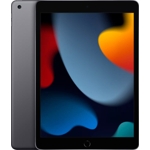
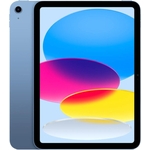
Samsung Galaxy Tab A11 - 128 GB - Wi-Fi + Cellular - Android - Silver
Not Available
Not Available
Currently unavailable
Currently unavailable
The Samsung Galaxy Tab A11 LTE (8.7") is designed for users seeking a versatile and portable Android tablet for everyday entertainment and communication. Its key benefit lies in its bright, smooth display and ample storage, making it ideal for media consumption and browsing. A potential caveat is its 4G-only connectivity, which may not suit those requiring the absolute latest network standards.
| Colour | Silver |
|---|---|
| Processor Family | ARM Cortex |
| WiFi Standard | Wi-Fi 5 |
| Internal Storage Capacity | 128 GB |
| Operating System | Android |
| OS | Android |
| Processor | ARM Cortex |
| Device Network Connectivity | Wi-Fi + Cellular |
| Display Size | 8.7 |
| Series | Galaxy Tab A |
| Model Part Number | SM-X135FZSEEUE |
| Mobile Device Battery Capacity | 5100 mAh |
| Brand | Samsung |
The Galaxy Tab A11 features a 90 Hz refresh rate for smoother motion on its display.
Yes, the tablet comes with 128 GB of internal storage and supports expansion up to 2 TB using a microSD card.
Yes, the Galaxy Tab A11 includes a 3.5 mm audio jack for wired headphones.
The tablet is equipped with a 5100 mAh battery.
The Galaxy Tab A11 supports 4G LTE connectivity.
Use a soft, dry microfiber cloth to gently wipe the screen. For stubborn smudges, lightly dampen the cloth with water, but avoid getting moisture into any ports.
The front camera has a resolution of 5 MP, suitable for clear video calls.
No, the Galaxy Tab A11 is designed for 4G LTE networks and does not support 5G.
Ensure the battery is charged. Connect the tablet to a charger for at least 30 minutes, then try powering it on again. If the issue persists, try a different charger and cable.
Toggle Wi-Fi or Cellular data off and on. Restart the tablet. Check your router or mobile network signal strength. Ensure your SIM card is correctly inserted and active for cellular data.
Close and reopen the app. Restart the tablet. Ensure the app and the tablet's operating system are updated to the latest versions. Clear the app's cache and data if the problem continues.
Restart the tablet. Ensure the screen is clean and free of moisture. If using a screen protector, try removing it to see if it resolves the issue.
Check the volume settings. Ensure the device is not muted. If using headphones, try a different pair or test the speakers without headphones. Restart the tablet.
Setup:
Compatibility:
Care: