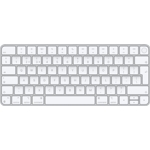
Apple Magic Keyboard - White, 2021

The Magic Keyboard combines a sleek design with a built-in rechargeable battery and enhanced key f...The Magic Keyboard combines a sleek design with a built-in rechargeable battery and enhanced key features. With an improved scissor mechanism beneath each key for increased stability as well as optimized key travel and a lower profile the Magic Keyboard provides a remarkably comfortable and precise typing experience. It pairs automatically with your Mac so you can get to work right away. And the battery is incredibly long-lasting - it will power your keyboard for about a month or more between chargesSleek and Modern DesignThe Apple Magic Keyboard with Universal USB and Bluetooth offers a sleek minimalist aesthetic that embodies Apple’s iconic design philosophy. With its low-profile keys and thin lightweight build this keyboard seamlessly integrates into any workspace. Its durable white finish adds a touch of elegance while resisting wear and tear ensuring it looks great over the long term. Crafted for comfort its smooth contoured edges make it ideal for long typing sessions while its compact form factor saves valuable desk space. Effortless ConnectivityThanks to its dual USB and Bluetooth connectivity options the Apple Magic Keyboard is incredibly versatile. You can easily pair it wirelessly with a variety of Apple devices including iMacs iPads and iPhones or connect via USB for quick plug-and-play convenience on any device. Switching between devices is seamless allowing users to effortlessly transition from one setup to another without interruption. This flexible connectivity makes it ideal for multitaskers who use different devices throughout the day. Precision-Tuned Typing ExperienceDesigned with productivity in mind the Apple Magic Keyboard provides a precise and comfortable typing experience. Its scissor-switch mechanism beneath each key offers a stable satisfying tactile feel that reduces typing fatigue. The refined key travel and low-profile build make each keystroke feel fluid and responsive enhancing typing speed and accuracy. Whether you’re drafting emails coding or working on lengthy reports this keyboard ensures a consistent enjoyable experience. QWERTY Layout with UK-Specific FeaturesThis Magic Keyboard model comes with a UK English QWERTY layout that provides all the specific keys and symbols needed for seamless typing in the UK. The keyboard layout is intuitive and easy to adapt to making it ideal for users familiar with standard UK layouts. With quick access to essential symbols and commands it is tailored to enhance productivity for UK-based users in a variety of professional and personal settings. Seamless Integration with macOSThe Apple Magic Keyboard is engineered to integrate perfectly with macOS making it the ideal companion for Mac users. Shortcut keys and quick-access functions are optimized for Apple’s operating system streamlining workflows and maximizing efficiency. With built-in support for macOS shortcuts like Mission Control and Spotlight search users can easily manage applications navigate through documents and perform a range of tasks at the touch of a button. This seamless compatibility ensures that users experience the full power of macOS with every keystroke. . .Condition This product has been fully tested and verified as functional with no hardware or software defects. Any data previously held on the device has been sanitised or the storage media removed, in line with data protection standards. The item may show minor cosmetic wear, including light scratches or blemishes, though these do not affect the products performance or usability. The device is loaded with legally licensed software, where applicable, and is configured for full operation. It has been professionally cleaned, with all non-original labels removed, and is complete with all parts present and accounted for. Warranty 1 Year Magic Keyboard delivers a remarkably comfortable and precise typing experience for Mac and Apple Vision Pro. Its also wireless and rechargeable, with an incredibly long-lasting internal battery thatll power your keyboard for about a month or more between charges. It pairs automatically with your Mac, so you can get to work straightaway. It features a USB-C port and includes a woven USB-C Charge Cable that lets you pair and charge by connecting to a USB-C port on your Mac, so you can charge all of your favorite devices with just a single cable.Magic Keyboard delivers a remarkably comfortable and precise typing experience. It's also wireless and rechargeable, with an incredibly long-lasting internal battery that will power your keyboard for1about a month or more between charges. It pairs automatically with your Mac, so you can get to work right away. And it includes a woven USB-C to Lightning Cable that lets you pair and charge by connecting to a USB-C port on your Mac.1Testing conducted by Apple in March and April 2021 using preproduction Magic Keyboard units, firmware, and software paired with preproduction 24-inch iMac systems with Apple M1 chip. Testing consisted of full battery discharge while engaging the device on a paired iMac using automated equipment. Battery life depends on device settings, usage, and other factors.2Weight varies by configuration and manufacturing process.
Best current price£60.99from eBay
Best offers
Shopping.co.uk recommended and popular offers
 eBay£60.99Visit shop ›
Apple Magic Keyboard Wireless USB Bluetooth QWERTZ SWISS Keyboard MXCL3SM/A
Visit shop ›eBay£61.74Visit shop ›Apple Magic Keyboard Wireless Bluetooth QWERTY Dutch White MK2A3N/A
Visit shop › Amazon£75.00Visit shop ›
Apple Magic Keyboard - British English
Visit shop ›