Setup, Compatibility & Care
Setup
- Insert two AAA batteries into the keyboard (ensure correct polarity).
- Turn on the keyboard using the power switch.
- Enable Bluetooth on your device (laptop, tablet, or phone).
- Press the Bluetooth pairing button on the keyboard (usually located on the side or bottom).
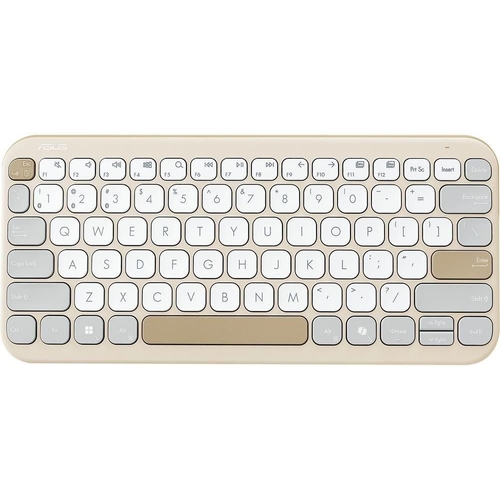
- Select "ASUS Marshmallow KW100" from the list of available Bluetooth devices on your device.
- Repeat steps 3-5 to pair with additional devices. You can switch between connected devices by using hotkeys.
Compatibility
The ASUS Marshmallow KW100 is compatible with:
- Windows 10 and 11
- ChromeOS
- macOS
- iOS and iPadOS
Care
- Clean the keyboard regularly with a slightly damp, lint-free cloth.
- Avoid using harsh chemicals or abrasive cleaners.
- Protect the keyboard from spills and excessive moisture.
- Replace the batteries when the keyboard stops functioning or the battery indicator shows low power.

 Box.co.uk£44.99Visit shop
  Currys£44.99Visit shop


