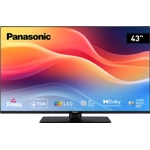
MSI PRO MP243W E14 - 23" - Full HD - White


Stand out features . WQHD High Resolution Superior Detail and SpaceFeaturing a WQHD (2560 x 1440) ...Stand out features . WQHD High Resolution Superior Detail and SpaceFeaturing a WQHD (2560 x 1440) resolution this monitor offers significantly more screen real estate and sharper detail than standard Full HD panels. This increased pixel density allows you to view more of your spreadsheets lines of code or graphic designs simultaneously without constant scrolling or zooming. The crisp clarity ensures that text is easy to read and images are displayed with precision boosting efficiency for detail-oriented tasks. . 144Hz Refresh Rate Fluid Professional WorkflowWhile often associated with gaming the 144Hz refresh rate brings noticeable benefits to the professional environment. It ensures that scrolling through long web pages documents and data sets is incredibly smooth and stutter-free. Combined with a 1ms (MPRT) response time this high refresh rate reduces motion blur and ghosting resulting in a more comfortable viewing experience that helps reduce eye fatigue during extended periods of use. . IPS Panel Technology Accurate Colour and Wide AnglesThe 27-inch display utilises an IPS (In-Plane Switching) panel renowned for its ability to produce accurate consistent colour and brightness levels. With wide 178-degree viewing angles you can share your screen with colleagues or view your work from off-centre positions without suffering from colour washout or image distortion. This makes it an ideal choice for collaborative work and reviewing creative content. MSI EyesErgo Prioritising Eye HealthTo safeguard your vision during long workdays the PRO MP273Q E14 is equipped with MSI's EyesErgo technology. This suite of features includes TUV Certified Anti-Flicker technology and Less Blue Light reduction which work together to minimise eye strain and dryness. The panel also features an anti-glare surface to reduce distracting reflections from overhead lights or windows allowing you to maintain focus comfortably. . Ergonomic Design and Built-in SpeakersThis monitor is designed to fit seamlessly into any workstation with its robust connectivity options including two HDMI ports and a DisplayPort. This flexibility allows you to connect effortlessly to laptops desktops and other devices. Additionally the inclusion of two built-in 3W speakers allows you to listen to audio files attend video conferences or edit multimedia content without the need for external speakers or headphones. . VESA Mountable and Adjustable DesignMaximise your desk space and customise your viewing setup with the standard 75mm x 75mm VESA mount support. This feature allows you to mount the monitor on a wall or a multi-monitor arm for a cleaner more ergonomic workspace. The stand also features a convenient accessory slot designed to hold your smartphone keeping your desk tidy and ensuring you never miss an important notification while you work.
Best current price£82.42from PcNova.co.uk
Best offers
Shopping.co.uk recommended and popular offers
 PcNova.co.uk£82.42Visit shop ›
Msi White Pro Mp243w E14 Computer Monitor 60.5 Cm (23.8") 1920 X 1080 P
Visit shop ›