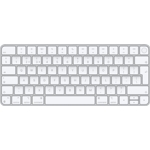
Setup
Setting up your Apple Magic Keyboard is designed to be straightforward for Mac users:
- Unbox and Charge: Remove the keyboard from its packaging. For the first use, it's recommended to connect it to your Mac using the included USB-C to Lightning cable to ensure it's charged and to initiate pairing.
- Automatic Pairing: When connected to your Mac with the cable, the keyboard will automatically pair. Once paired, you can disconnect the cable if you prefer wireless use.
- Bluetooth Connection: Ensure Bluetooth is enabled on your Mac. If not automatically connected after initial cable pairing, go to System Settings (or System Preferences) > Bluetooth and select your Magic Keyboard from the list of devices.
Compatibility
This Magic Keyboard is primarily designed for Apple macOS devices.
- Full Functionality: Touch ID requires a Mac with an Apple silicon chip (M1, M2, M3, etc.) running macOS Big Sur 11.4 or later.
- Basic Keyboard Functions: Can function as a standard Bluetooth keyboard with other Bluetooth-enabled devices, but features like Touch ID, automatic pairing, and specific multimedia keys might have limited or no functionality outside of macOS.
- Charging: Requires a Mac or a USB-C power adapter for charging via the included USB-C to Lightning cable.
Care
To maintain your Magic Keyboard in optimal condition:
- Cleaning: Gently wipe the keyboard with a soft, slightly damp, lint-free cloth. Avoid excessive moisture or harsh cleaning agents.
- Charging: Recharge the internal battery using the provided USB-C to Lightning cable. Connect the USB-C end to your Mac's USB-C port or a compatible power adapter, and the Lightning end to the keyboard.
- Storage: Store the keyboard in a dry, clean environment when not in use. Avoid exposing it to extreme temperatures or direct sunlight.
- Battery Life: For optimal battery longevity, perform a full charge cycle periodically. The battery is designed for a month or more of use between charges.



 eBay£129.00Visit shop
  Amazon£152.00Visit shop