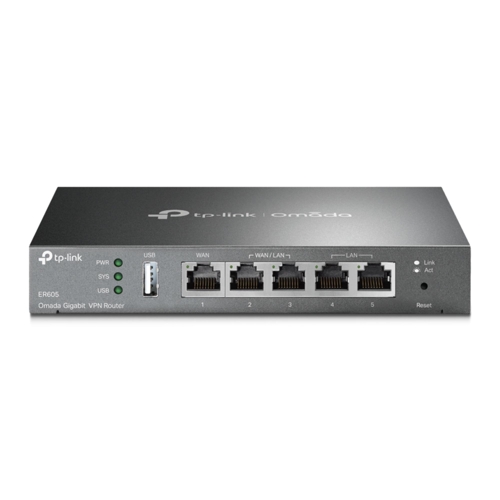
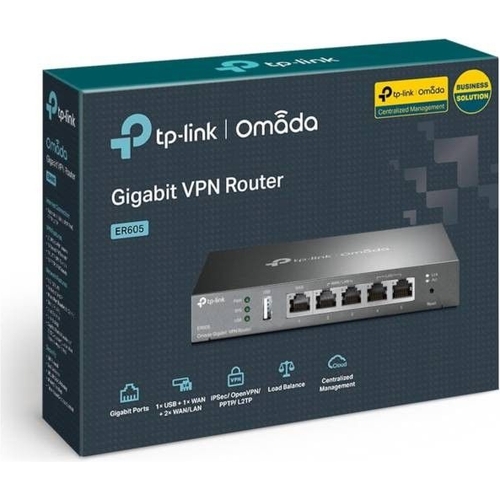
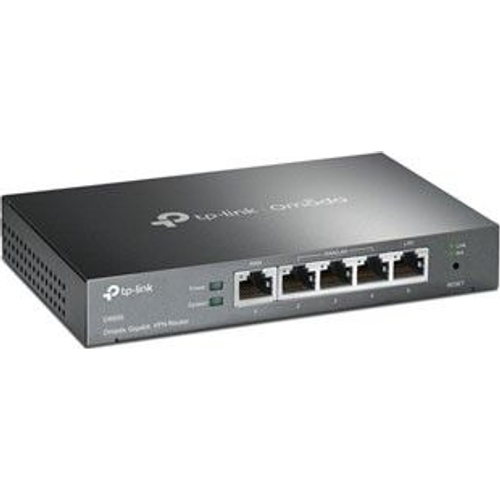
This ER605 router is integrated into Omada SDN for Zero-Touch Provisioning, Centralized Cloud Mana...This ER605 router is integrated into Omada SDN for Zero-Touch Provisioning, Centralized Cloud Management, and Intelligent Monitoring. It offers ultra convenience and easy management via the Omada app or cloud access. The router features five Gigabit Ports for high-speed wired connectivity, with up to 4 WAN Ports (1 gigabit WAN and 3 gigabit WAN/LAN) supporting load balancing to increase the utilization rate of multi-line broadband. It provides highly secure VPN connections, supporting up to 20x LAN-to-LAN IPsec, 16x OpenVPN, 16x L2TP, and 16x PPTP VPN connections. Additionally, it includes abundant security features such as advanced firewall policies, DoS defense, IP/MAC/URL filtering, and more to protect your network and data. As the gateway that seamlessly integrates into the Omada Software Defined Networking (SDN) platform, ER605 allows for remote and centralized management from anywhere, anytime. Standalone management via the Web UI or app is also available to maximize convenience.
The TP-Link Omada Gigabit VPN Router (TL-R605) is designed for small to medium businesses and advanced home users seeking a robust, secure, and centrally managed network solution. Its primary benefit is seamless integration with the Omada Software Defined Networking (SDN) platform, offering centralized control and powerful VPN capabilities, though it primarily provides wired routing and requires separate access points for wireless connectivity. This router delivers high-speed Gigabit wired connections, multi-WAN load balancing for enhanced reliability, and extensive security features, all managed conveniently via the Omada app, cloud access, or a standalone web interface.
All features
Model Part Number
TL-R605
Brand
TP-LINK
Extended Product Information
FAQs
Does the TP-Link TL-R605 have built-in Wi-Fi?
No, the TL-R605 is a wired Gigabit VPN router and does not include built-in Wi-Fi capabilities. To add wireless connectivity, you will need to connect separate Omada-compatible or standard Wi-Fi access points to its LAN ports.
What is Omada SDN and why is it important for this router?
Omada SDN (Software Defined Networking) is TP-Link's centralized cloud management platform. It allows you to manage multiple Omada devices, including the TL-R605 router, switches, and access points, from a single interface, anywhere, anytime. This simplifies network setup, monitoring, and maintenance, especially for distributed networks or larger installations.
Can I use the TL-R605 without an Omada SDN Controller?
Yes, you can manage the TL-R605 in standalone mode using its local web user interface (Web UI) via a connected computer, or through the Omada app. While integrating with an Omada Controller unlocks advanced centralized management features, it is not strictly required for basic functionality.
How many internet connections can I use with the TL-R605?
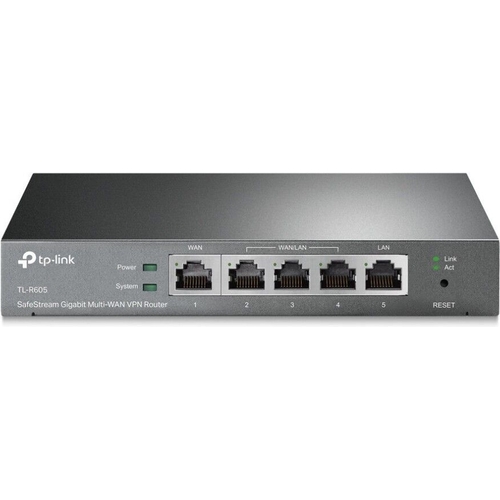
The TL-R605 has one dedicated WAN port and three LAN/WAN configurable ports. This allows you to utilize up to four WAN (internet) connections simultaneously. These multiple WAN ports can be configured for load balancing to increase overall bandwidth and provide redundancy.
What types of VPN connections does the TL-R605 support?
The TL-R605 supports a variety of secure VPN protocols, including IPsec, OpenVPN, L2TP over IPsec, and PPTP. This enables flexible and secure remote access for users and reliable site-to-site connections between different network locations.
Is the TL-R605 suitable for home use?
While capable for home use, the TL-R605 is primarily designed for small to medium businesses due to its advanced VPN, multi-WAN, and Omada SDN integration features. For a typical home user who primarily needs Wi-Fi, a standard wireless router or mesh system might be a more straightforward and cost-effective choice, as the TL-R605 requires separate Wi-Fi access points.
How do I update the firmware on my TL-R605?
You can update the firmware by accessing the router's web management interface. Navigate to the `System Tools` or `Firmware Upgrade` section. First, download the latest firmware file for your specific hardware version from the official TP-Link support website. Then, upload the downloaded file through the router's interface and follow the prompts. If managed by an Omada Controller, firmware updates can often be managed centrally from the controller.
Troubleshooting
No internet access after setup.
Verify that the Ethernet cable from your modem is securely connected to the blue `WAN` port on the TL-R605. 2. Check the modem's status lights to ensure it has an active internet connection. 3. Access the router's web interface and navigate to the WAN settings to confirm correct connection type (e.g., Dynamic IP, PPPoE) and credentials if required by your ISP. 4. Try power cycling both your modem and the router.
VPN connection fails to establish.
Ensure VPN server settings on the TL-R605 are correctly configured, including IPsec/OpenVPN/L2TP/PPTP parameters, user credentials, and pre-shared keys. 2. Check your client device's VPN settings for accuracy. 3. Verify that any necessary ports are forwarded through your main router (if the TL-R605 is behind another router) or that firewall rules on the TL-R605 allow VPN traffic. 4. Confirm that the client device has internet connectivity.
Slow network performance or buffering.
If using multi-WAN load balancing, check the configuration to ensure proper distribution of traffic across your internet lines. 2. Test individual WAN connections to identify if one ISP is experiencing issues. 3. Ensure the router's firmware is up to date. 4. Verify that no devices are consuming excessive bandwidth (e.g., large downloads or streaming) or that there are no DoS attacks indicated in the router logs. 5. Consider the overall capacity of your internet connections.
Cannot access the router's web management page.
Ensure your computer is directly connected to one of the yellow `LAN` ports of the TL-R605 and is set to obtain an IP address automatically (DHCP). 2. Verify you are using the correct default IP address (e.g., `192.168.0.1` or `192.168.1.1`). 3. Clear your browser's cache or try a different web browser. 4. If you have changed the router's IP address, ensure you are using the new address. 5. Perform a factory reset (refer to the user manual for the reset button location and procedure) if you have forgotten the login credentials or changed the IP address and can't recall it (note: this will erase all configurations).
Pros and Cons
Pros
Seamless integration with Omada SDN for centralized management.
High-speed Gigabit Ethernet ports for wired performance.
Excellent VPN capabilities for secure remote access and site-to-site connections.
Multi-WAN load balancing enhances internet reliability and speed.
Comprehensive security features protect the network from various attacks.
Flexible management options via app, cloud, or local web interface.
Cons
Does not include built-in Wi-Fi; requires separate wireless access points.
Full benefits of Omada SDN require additional Omada devices.
Initial setup and advanced configurations may require networking knowledge.
Primarily a wired solution, not suitable as a standalone home router for wireless needs.
Setup, Compatibility & Care
Setup Instructions
Unpack and Connect Power: Remove the router from its packaging. Connect the included power adapter to the router's power port and then to a power outlet.
Connect to Internet (WAN): Connect your modem's Ethernet cable to the blue `WAN` port on the TL-R605.
Connect to Local Network (LAN): Connect your computer or an Omada-compatible switch/access point to one of the yellow `LAN` ports (LAN1/WAN2, LAN2/WAN3, LAN3/WAN4).
Access Management Interface: Open a web browser on a connected computer. The router's default IP address is typically `192.168.0.1` or `192.168.1.1`. Refer to the label on the router for the exact default IP and login credentials. Follow the on-screen Quick Setup Wizard for initial configuration.
Omada SDN Integration (Optional): If integrating with Omada SDN, ensure your Omada Controller (hardware or software) is set up and accessible. The router can then be adopted and managed centrally through the Omada Controller or app.
Compatibility
Omada SDN: Fully compatible with TP-Link's Omada Software Defined Networking platform, allowing seamless integration with Omada access points, switches, and controllers.
Network Devices: Compatible with any standard Ethernet-based networking equipment, including modems, switches, computers, servers, and network-attached storage (NAS).
Internet Service Providers: Works with most internet service providers (ISPs) using Ethernet connections.
Care and Maintenance
Placement: Place the router in a well-ventilated area, away from direct sunlight, heat sources, and strong electromagnetic fields to prevent overheating and interference.
Cleaning: Periodically clean the router's exterior with a soft, dry cloth. Avoid using liquid cleaners or aerosols directly on the device.
Firmware Updates: Regularly check the TP-Link support website for firmware updates. Keeping the firmware current ensures optimal performance, security, and access to new features.
Power Cycle: If encountering minor network issues, a simple power cycle (unplugging the power adapter, waiting 10 seconds, and plugging it back in) can often resolve them.


 PCHUB.UK£52.51Visit shop
  eBay£60.50Visit shop


