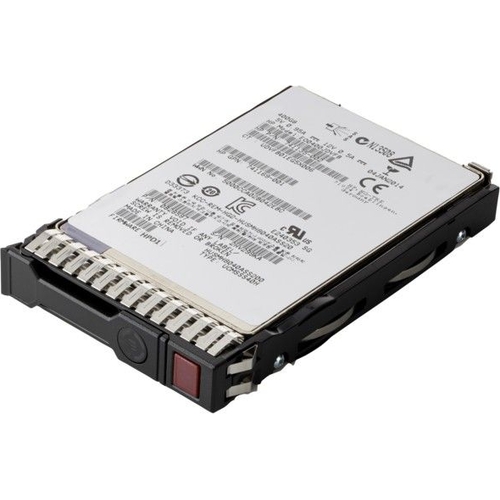
HPE internal solid state drive - 1.92 TB - 2.5 - Serial ATA III - MLC

HPE P05986-B21 internal solid state drive 2.5 1.92 TB Serial ATA III MLC. Do you need to accelerat...

Best current price£834.75from eBay

All Offers

10 offers from £834.75 - £1,596.35

View price history by clicking the chart icon.

eBayHewlett Packard Enterprise P05928-B21 480GB SATA RI SFF SC DS SSD
Free delivery in 1–3 days
£834.75
Visit shop

Refurbished Offers

3 offers from £755.00 - £964.00

View price history by clicking the chart icon.

eBayHP P09094-B21 3.2TB 12Gbps SC DS SAS 2.5in SFF SSD (No Label) - 1yr Wty
Free delivery in 1–3 days
£755.00
Visit shop

Product Information

Full details

The HPE P05986-B21 is a 1.92 TB 2.5" SATA III Mixed Use (MU) internal solid-state drive designed for servers and workstations requiring accelerated performance for data-intensive applications. It offers a significant boost in IOPS over traditional SATA SSDs, enhancing transactional database workloads and data analytics. While it provides high performance and reliability backed by extensive testing, users should ensure their system supports 6 Gbit/s SATA III interfaces.

All features

SeriesMU
Model Part NumberP05986-B21
BrandHPE

Extended Product Information

FAQs

What is the main advantage of this HPE SSD over a standard SATA SSD?

The primary advantage is significantly higher IOPS (Input/Output Operations Per Second) performance, making it ideal for demanding, data-intensive applications like databases and analytics. It also offers higher endurance for mixed workloads.

Is this SSD compatible with any computer?

This drive uses a SATA III (6 Gbit/s) interface and a 2.5" form factor. It is compatible with servers and workstations that have SATA III ports. While it may work in systems with SATA II ports, its performance will be limited.

What does 'Mixed Use (MU)' mean for an SSD?

Mixed Use indicates the drive is designed to handle a balanced workload of both read and write operations effectively, offering good endurance for typical enterprise applications that aren't strictly read-intensive or write-intensive.

How does HPE Digitally Signed Firmware protect my data?

It ensures that the firmware loaded onto the drive comes only from a trusted source (HPE). This prevents malicious firmware from being installed, protecting your system and data from unauthorized access or corruption.

Can I monitor the health and lifespan of this SSD?

Yes, the drive features HPE SmartSSD Wear Gauge, which allows you to monitor its lifespan and determine if it's nearing the end of its expected life, enabling proactive replacement.

What is the difference between this Value SAS SSD and a standard SATA SSD?

HPE Value SAS SSDs, like this one (though this specific model is SATA III, the description contrasts Value SAS with SATA), typically offer roughly twice the IOPS of SATA SSDs and support higher interface speeds (12Gbs SAS vs 6Gbs SATA), leading to significantly improved workload performance for transactional databases.

What are the power consumption details for this SSD?

The drive has a maximum power consumption of 4W, a read power consumption of 2.32W, and a write power consumption of 3.3W.

Troubleshooting

Drive not detected by the system

Verify that the SATA data and power cables are securely connected to both the drive and the motherboard/controller. Ensure the SATA port is enabled in the BIOS/UEFI. Try a different SATA port and cable.

Slow performance or unexpected errors

Check the drive's health using S.M.A.R.T. tools. Ensure the drive is connected to a SATA III (6 Gbit/s) port and not limited by SATA II. Update system storage controller drivers and firmware. Run diagnostics to check for drive errors.

Operating system fails to boot from the drive

Confirm the drive is set as the primary boot device in BIOS/UEFI. Ensure the operating system was installed correctly on the drive and that it is properly partitioned and formatted. Verify boot sector integrity.

Drive shows "Do Not Remove" warning unexpectedly

This is a safety feature to prevent accidental removal during operation. Safely eject or power down the system according to standard procedures before physically removing the drive.

Pros and Cons

Pros

  • Accelerates performance for data-intensive applications.
  • Offers significantly higher IOPS compared to standard SATA SSDs.
  • Backed by HPE's rigorous testing and qualification for reliability.
  • Features like Smart Carrier and Digitally Signed Firmware enhance data security and usability.
  • Ideal for a wide range of enterprise workloads including big data analytics and database applications.

Cons

  • Limited to 6 Gbit/s SATA III interface speeds, which is slower than newer SAS or NVMe interfaces.
  • Primarily designed for server/workstation environments; may not be compatible with all consumer-grade hardware.
  • MLC NAND, while reliable, may have slightly lower endurance than some other NAND types in extreme write-heavy scenarios.
  • Requires specific system compatibility for the 6 Gbit/s SATA III interface.

Setup, Compatibility & Care

Setup:

This is an internal 2.5" SATA III SSD. Installation typically involves:

  1. Powering down the server or workstation.
  2. Opening the chassis.
  3. Locating an available 2.5" drive bay and a free SATA data and power connector.
  4. Securing the drive in the bay (some systems may use a hot-swap bay).
  5. Connecting the SATA data cable to the motherboard/controller and the SATA power cable from the power supply.
  6. Closing the chassis and powering on the system.
  7. The drive will need to be initialized, partitioned, and formatted within the operating system before use.

Compatibility:

  • Requires a system with a SATA III (6 Gbit/s) port. It is backward compatible with SATA II (3 Gbit/s) ports, but performance will be limited to SATA II speeds.
  • Compatible with HPE servers and workstations that support 2.5" SATA drives.
  • Ensure your system's BIOS/UEFI recognizes SATA drives and supports the boot process if installing as a boot drive.

Care:

  • Monitor drive health using the HPE SmartSSD Wear Gauge utility or equivalent S.M.A.R.T. monitoring tools.
  • Avoid physically shocking or dropping the drive.
  • Ensure adequate airflow within the server/workstation to prevent overheating, as the drive has a maximum power consumption of 4W.
  • Regularly back up critical data, as with any storage device.

Price History

DatePrice
Visit shop