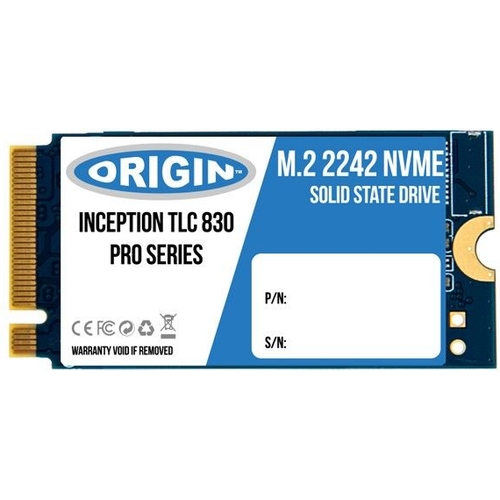
The Origin Storage 1TB 3D TLC M.2 2242 NVME SSD is a high-performance solid-state drive designed f...The Origin Storage 1TB 3D TLC M.2 2242 NVME SSD is a high-performance solid-state drive designed for speed and reliability. Featuring 3D TLC NAND technology and an NVMe interface, it offers fast data transfer rates for demanding applications and gaming. Its M.2 2242 form factor ensures compatibility with a wide range of devices. This SSD from the Inception series provides ample storage for your operating system, applications, and files, making it an excellent upgrade for laptops and compact systems. Enjoy faster boot times, quicker application loading, and smoother overall system performance.
Origin Storage Inception 1TB SSD NVMe M.2 3D TLC 42mm Compact (OTLC1TB3DNVMEM.2/42)Free delivery in 1–3 days£208.47Visit shop →
Product Information
Full details
The Origin Storage 1TB NVMe M.2 2242 SSD is designed for users seeking a significant speed boost in compact systems and laptops. Its key benefit is dramatically faster data transfer, leading to quicker boot times and application loading. A potential caveat is its compact 2242 form factor, which may limit compatibility with some motherboards or enclosures.
All features
Series
Inception SSD
Model Part Number
NB-1TBM.2/NVME-42
Brand
Origin Storage
Extended Product Information
FAQs
What is the difference between NVMe and SATA SSDs?
NVMe (Non-Volatile Memory Express) uses the PCIe interface for much higher speeds and lower latency compared to SATA (Serial ATA), which is an older interface. This Origin Storage SSD uses NVMe for superior performance.
Will this M.2 2242 SSD fit in any M.2 slot?
No, it specifically requires an M.2 slot that supports the 2242 physical dimensions (22mm wide, 42mm long) and the NVMe protocol. Standard M.2 slots often support 2280 drives, so check your device's specifications.
What is 3D TLC NAND?
3D TLC (Triple-Level Cell) NAND is a type of flash memory where cells are stacked vertically. This allows for higher densities, improved performance, and better endurance compared to planar NAND.
Can I use this SSD for my operating system?
Yes, this 1TB NVMe SSD is an excellent choice for installing your operating system, significantly reducing boot times and improving overall system responsiveness.
Does this SSD have hardware encryption?
No, this specific model (NB-1TBM.2/NVME-42) does not feature hardware encryption. Data security would rely on software-based encryption methods if required.
What is the warranty period for this SSD?
Please refer to the official Origin Storage documentation or the retailer for specific warranty information, as it can vary.
Troubleshooting
SSD not detected by BIOS/UEFI
Verify the M.2 slot supports NVMe and the 2242 form factor. Ensure the SSD is properly seated. Check motherboard BIOS settings for M.2 enablement or NVMe configuration.
SSD not showing in Operating System
Open Disk Management (Windows) or Disk Utility (macOS) to initialize and format the drive. Ensure the correct drivers are installed if necessary.
Slow transfer speeds
Confirm the SSD is installed in a PCIe 3.0 x4 capable M.2 slot. Check system drivers and ensure no other background processes are heavily utilizing the drive. Verify the workload is suitable for sequential performance tests.
System instability or crashes
Ensure the SSD is securely installed. Check system temperatures for overheating. Update system BIOS and storage controller drivers. Run drive diagnostic tools.
Pros and Cons
Pros
Significantly improves system boot times and application loading.
Compact M.2 2242 form factor suits small devices.
NVMe technology provides high-speed data access.
Offers a substantial 1TB capacity for diverse storage needs.
Reliable performance for everyday computing and gaming.
Cons
M.2 2242 is less common than 2280, potentially limiting compatibility.
Requires a compatible M.2 slot with NVMe support.
Does not feature hardware encryption.
Performance may vary depending on system configuration and workload.
Setup, Compatibility & Care
Setup:
Ensure your motherboard or laptop has a compatible M.2 slot that supports NVMe and the 2242 form factor.
Power off your computer and disconnect the power cable.
Open your computer or laptop chassis.
Locate the M.2 slot and gently insert the SSD at an angle, then secure it with the appropriate screw (often provided with the motherboard or laptop).
Close the chassis, reconnect power, and power on your system.
Your system may automatically detect the drive, or you may need to initialize and format it through Disk Management in Windows or Disk Utility in macOS.
Compatibility:
Form Factor: Requires an M.2 slot specifically supporting the 2242 (22mm wide, 42mm long) form factor.
Interface: Must be an M.2 slot with NVMe support (PCIe lanes).
Operating System: Compatible with Windows, macOS, and Linux operating systems that support NVMe drives.
Care:
Avoid exposing the SSD to extreme temperatures or humidity.
Ensure proper ventilation within your system to prevent overheating.
Regularly back up important data to a separate location.
Avoid frequent full power cycles if possible; modern SSDs are designed for sustained use.

 eBay£59.99Visit shop
 Frasers£159.00Visit shop


